
Create a monitor
Configure an alerting rule on your leaks: categories, leak type, filters, evaluation window, threshold, severity and notification channels.
A monitor is a rule applied to your leaks. It counts the leaks matching its query over a time window, and fires an alert when that count reaches the threshold. It is evaluated every 10 minutes on credentials consolidated every hour: a new leak triggers it at the latest about one hour after it arrives.
Only an administrator of the space can create or edit a monitor.
Open the form
- From the menu: open Monitor and click New Monitor. The form
opens at
/alerts/new. - From the cockpit leak list: in the Leaks tab, the bell button Create an alert from these filters opens the form prefilled with the categories, type, country and stealer of the list on screen. Filters a monitor does not know (month, keyword, search...) are not carried over: check the query before saving.
Then give the monitor a name, for example "Admin account leaks on acme.com". The form has three sections.
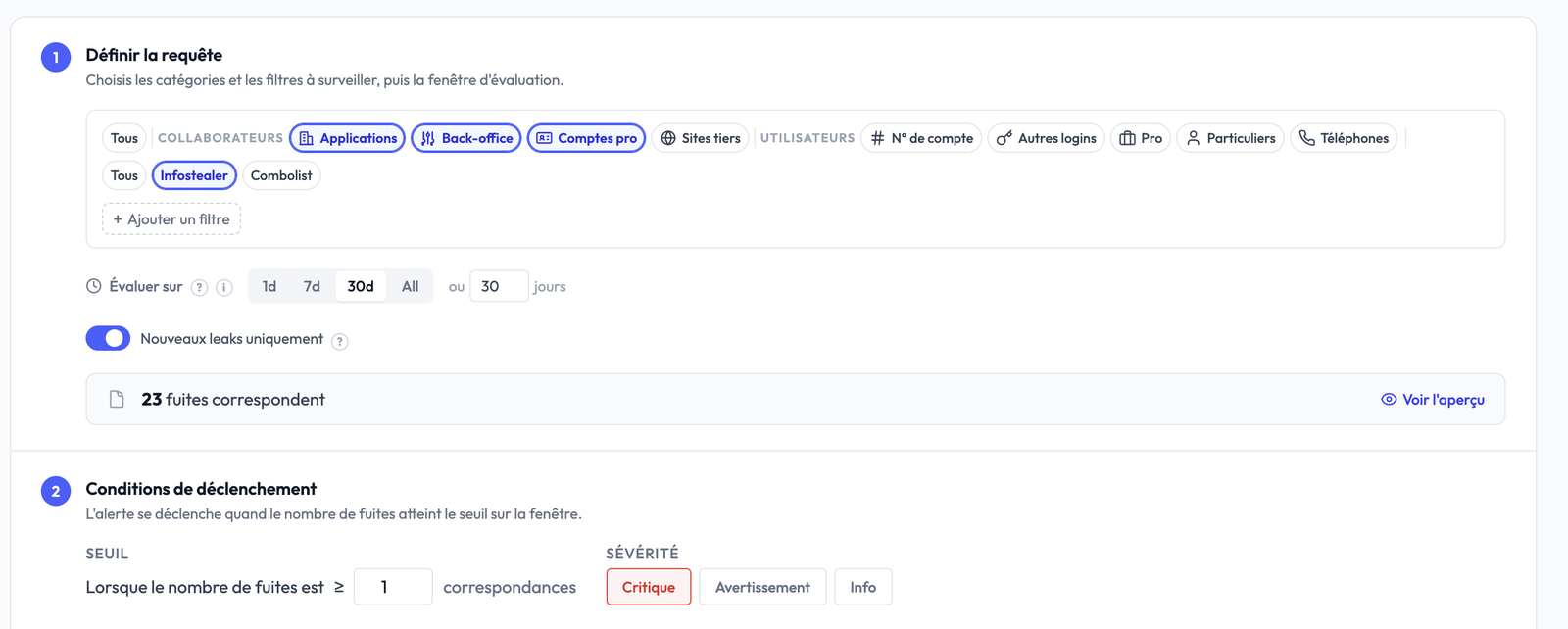
1. Define the query
The query says which leaks the monitor counts. Only leaks that meet every condition are counted.
- Categories: All, or one or more categories, grouped by family. Staff: Applications, Back-office, Pro accounts, Third-party. Users: Account no., Other logins, Business, Personal, Phones. See Staff and users for the definition of each one.
- Type: All, Infostealer or Combolist.
- + Add filter: restrict to domains, root domains, e-mail domains or
stealer names. Values accept
*(any number of characters) and?(a single character). - Evaluate over: the rolling window the monitor evaluates,
1d,7d,30d,All, or a number of days. A short window reacts faster but is noisier; a long one smooths out spikes. - New leaks only: on, only leaks first seen inside the window count, and re-ingestions are ignored. Off, any credential seen at least once in the window counts, including an old credential shared again.
The N leaks match counter updates as you type; Show preview displays the list. Above it, the timeline preview shows the total over the displayed range, the count in the evaluation window, and whether the monitor would trigger today (yes or no).
Example: to get alerted as soon as an employee has an access stolen by an infostealer, select Applications, Back-office and Pro accounts, the Infostealer type, and a 30-day window.
2. Alert conditions
- Threshold: "When leak count is ≥ N matches". Defaults to
1: every new matching leak triggers. For a high-volume perimeter where only spikes matter, raise the threshold (e.g.10) to avoid notification fatigue. - Severity: Critical, Warning or Info, to rank your alerts.
3. Notifications
- Notification channels: select one or more channels of your organisation. The same alert is dispatched to each of them at once; you can mix them (e.g. Slack for the on-call team and email for the security manager). If no channel exists yet, see Receive notifications.
- Renotification: while the alert stays open, a reminder goes out every N hours (24 h by default) or after N new matching leaks (10 by default), whichever comes first. See Renotification.
Click Create monitor. The Run evaluation now button on the monitor page runs an evaluation without waiting for the next pass.
Where alerts show up
- In the cockpit, the Alerts pill shows the number of open alerts; a click opens their list.
- On the cockpit Evolution · 12 months chart, triggered alerts appear as markers under the months concerned.
- In the Monitor menu, the History tab lists every event. Handling them (assign, acknowledge, comment, close) is described in Incident handling.
Editing a monitor with an open event
If you change the query of a monitor that has an open event, Stealed bumps the anti-replay baseline so the open event keeps tracking the new scope from that point forward. You don't need to close and recreate the event.
What's next
- Receive notifications: configure where alerts land.
- Deduplication: understand why one monitor produces only one open event at a time.
Monitoring overview
How Stealed's alerting system works: from pattern matching to incident closure, with multi-channel notifications, deduplication and an audit-ready timeline.
Receive notifications
Configure Slack, Microsoft Teams, Discord, custom webhooks and email so Stealed alerts land where your team operates.