
Assets
Your keywords, domains and IP ranges: analyse them from the cockpit search bar, add them to your perimeter and follow their validation.
An asset is what Stealed monitors for you: a keyword, a domain or an IP address (single or as a range). Credentials leaked on your monitored assets feed the cockpit, the categories and the alerts.
Only an administrator of your space can search and add assets. Members see everything else: the Assets tab, the figures and the leaks.
The Assets tab
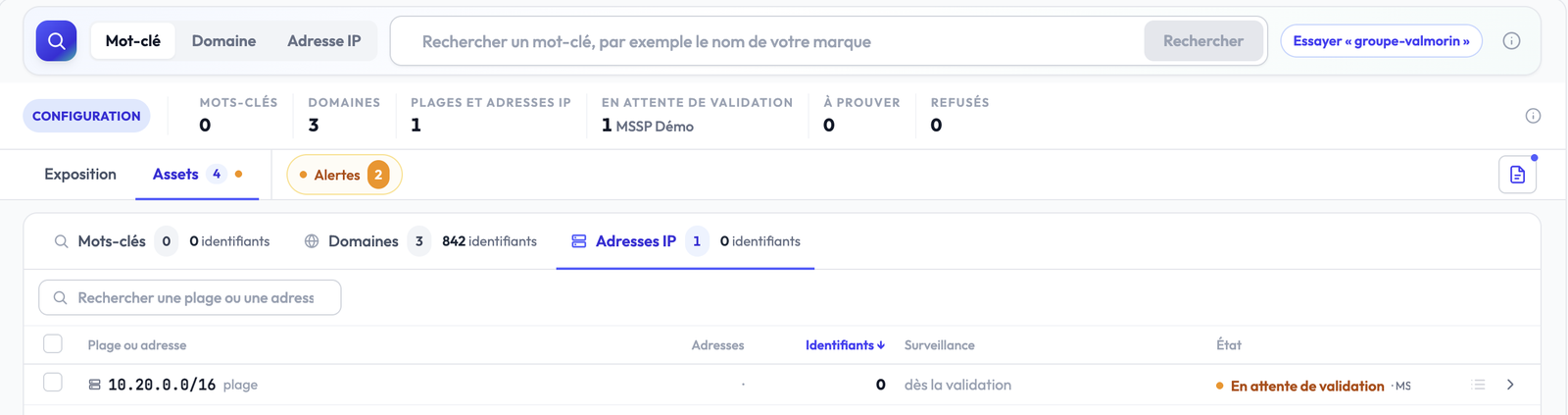
In the cockpit, the Assets tab lists everything configured.
- The Configuration band counts your assets: Keywords, Domains, IP ranges and addresses, then the requests Waiting for validation (with the name of who validates them), To prove and Refused.
- Three sub-tabs: Keywords, Domains, IP addresses, each with its number of credentials.
- Two filters: Origin (All, By hand, or via a given keyword) and State (All, Watched, Waiting, To prove, Refused).
- The table shows for each asset its name, origin, sub-domains, credentials and state. Row actions let you see its leaks or remove it.
Add an asset
Assets are added from the search bar at the top of the cockpit. Pick the mode (Keyword, Domain or IP address), type the value and run the search. There is always an analysis before adding: you see the figures first, and nothing is monitored without your validation.
Keyword
A keyword finds the domains and sub-domains that carry a term, typically your brand name. Type a term of at least three characters and pick the search mode:
| Mode | The term is found when... |
|---|---|
| Contains | it appears in the name, even attached to other letters (golfacme, acmeinfo). |
| Whole word | it forms a complete word, between dots or hyphens (acme-corp, www.acme.fr). |
| All words | every word of a multi-word term is present, in any order. Available for a term of several words. |
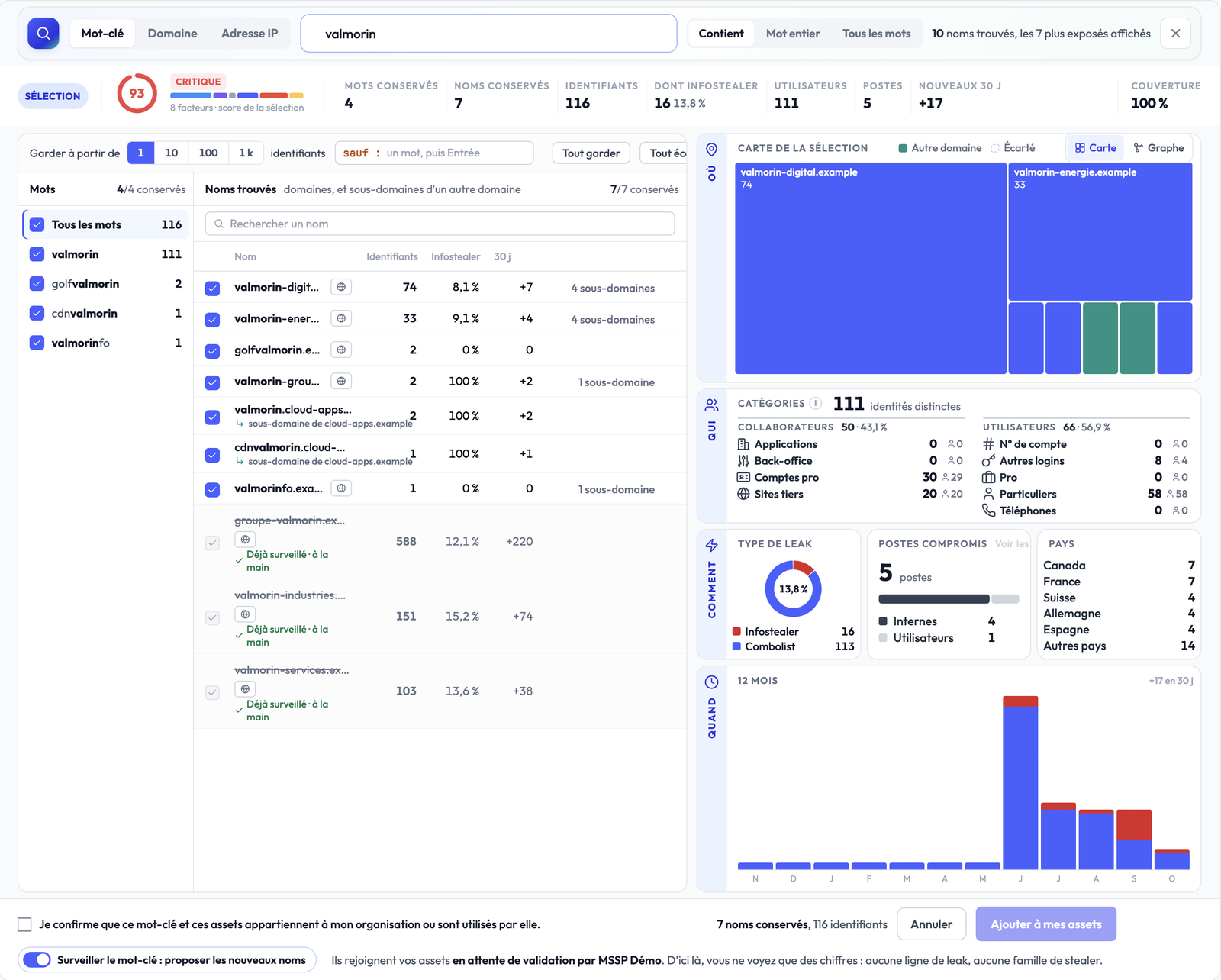
The analysis shows:
- Words: the variants found that contain the term, with their number of credentials.
- Names found: the domains, and the sub-domains of another domain (for example a portal of your brand hosted by a provider), with their credentials, infostealer share and new credentials over 30 days. Names you already monitor appear struck through, marked "Already watched".
To sort them out:
- Keep from 1, 10, 100 or 1k credentials: ticks the names that reach the threshold and discards the others.
- except: type a word then Enter to discard every name that carries it, today and in future.
- Keep all and Discard all, or tick names one by one. A discarded name stays in place and is restored with one click.
On the right, the selection gets its own analysis, recomputed with every name kept or discarded: score, map or graph, categories, leak type, machines, countries and 12-month evolution.
To finish:
- Tick the confirmation "I confirm that this keyword and these assets belong to my organisation or are used by it."
- Leave Monitor the keyword: suggest the new names on if you want the keyword to stay active. New names carrying the term are suggested every night in the keyword's detail, never added without your consent.
- Click Add to my assets.
Domain
Type a domain or a sub-domain, alone, without https:// or a path. It is
taken as typed and covers all its sub-domains. You can type several,
separated by commas. The analysis shows its sub-domains and their
figures.
A domain may have to be proven with a DNS TXT record. It then shows the To prove state: open that state on its row, copy the record, publish it at your DNS provider, then run the verification. Monitoring starts as soon as the verification succeeds. Publishing the TXT record is detailed in the Quickstart, step 4.
IP address
Type an address or a range, from /8 to /31. You can type several,
separated by commas. Reserved blocks are flagged as you type.
An IP range covers what has no domain name: VPN gateways, admin interfaces, applications exposed by address only. The figures of an address or range appear only after its validation, and its monitoring starts at that moment.
After adding: validation
Added assets are waiting for validation by the Stealed team, or by your provider if your space is managed by a partner. Until then you only see figures: no leak row, no stealer family. Once validated, the asset joins your validated perimeter, and its leaks open in the cockpit.
| State | What it means |
|---|---|
| Waiting for validation | The request waits for the Stealed team or your partner to validate it. Figures only. |
| To prove | The domain waits for its DNS TXT proof. Figures only. |
| Watched | The asset is part of your perimeter: its leaks are visible and feed the alerts. |
| Refused | The request was refused. The reason shows on hover. |
What's next
- Cockpit: read the exposure of your assets.
- Staff and users: the category of every credential.
- Create a monitor: get alerted on new leaks of your assets.
Staff and users
The two families and nine exposure categories: what each one holds, why they do not weigh the same, and how they drive the cockpit, the filters, the score and the alerts.
Reading detected leaks
The cockpit leak list: open it on the right selection, read its columns and the leak sheet, search, sort, export and create an alert.