
Reading detected leaks
The cockpit leak list: open it on the right selection, read its columns and the leak sheet, search, sort, export and create an alert.
The leak list opens from the cockpit: with the See the leaks (N) button, or with the list icon next to every figure (a category, a domain, a country, a stealer...). It always covers the cockpit selection: the same filters, so the same figures.
The leaks panel
The panel opens on the side of the screen, with three tabs:
- Leaks: one row per leaked credential;
- Users: one row per exposed person, with their leaks;
- Machines: the compromised machines of the selection.
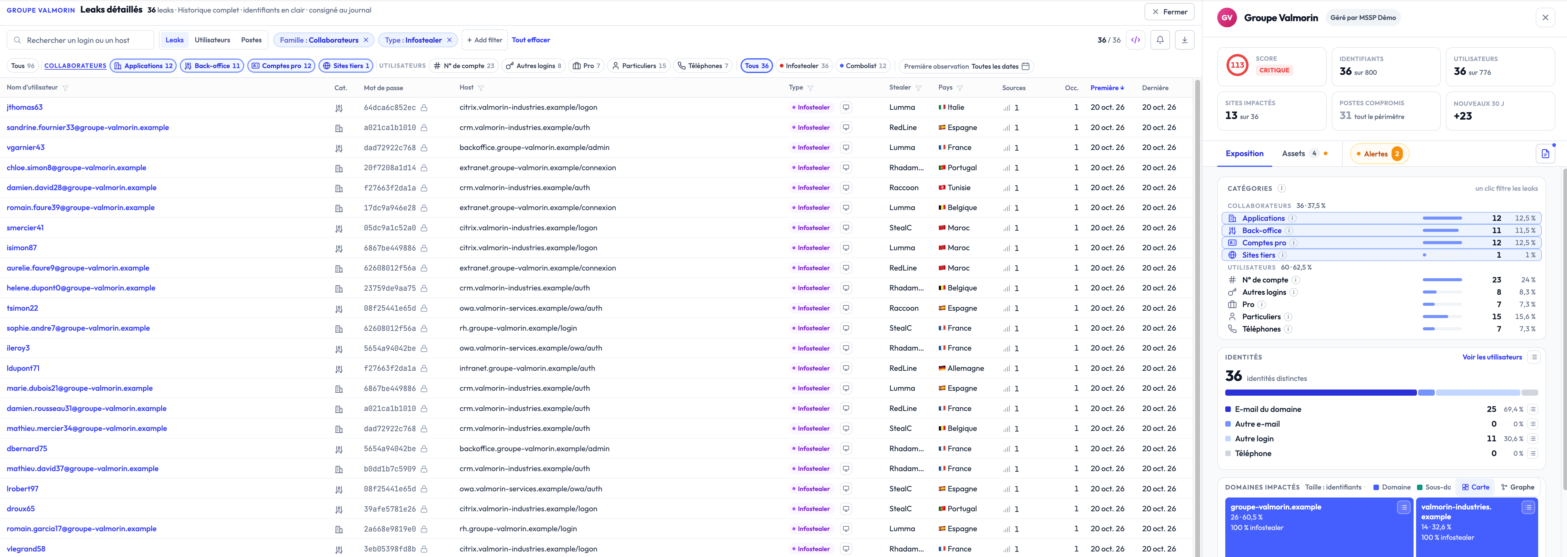
Active filters show as chips at the top of the panel. In the Leaks tab, the columns are:
- Username: the identifier exposed in the leak;
- Category: its category, for example Enterprise accounts or Personal users;
- Password: masked by default. Revealing it is an explicit, per-row action, recorded in the log;
- Host: the site the credential was used on;
- Type: infostealer or combolist;
- Stealer: the malware family, for an infostealer;
- Country: the machine geolocation, when known;
- First: the date Stealed first detected it.
The list reads in pages of 25, 50 or 100 rows.
The leak sheet
A click on a row opens the leak sheet: the identity (username, password), the context (hostname, root domain, observation period, number of occurrences) and, for an infostealer, the infected machine.
Filter and search
The list follows the cockpit filters: to change the selection, add or remove filters in the cockpit, or remove a chip in the panel. The search box narrows the list on screen:
- Leaks tab: a login or a host (
john,@acme.com,portal); - Users tab: a login or a domain;
- Machines tab: a machine or an account.
Sort
Click a column header to sort the list.
Export
The export button downloads the filtered list as CSV, for a spreadsheet or SIEM ingestion. The organisation's PDF report is generated from the cockpit report button.
For programmatic extraction (JSON output, full dataset, scripted pulls),
use the REST API: filters translate to query parameters on
the /leaks/details endpoint.
Create an alert from the list
In the Leaks tab, the bell button Create an alert from these filters opens the monitor form prefilled with the selection. See Create a monitor.
Hash management (RGPD)
Every credential is stored as a cryptographic hash, not plaintext. The plaintext password is only revealed on explicit click, which is logged in your organization's audit trail.
If a user requests deletion under RGPD, you can mark the corresponding hash for removal from your tenant. The hash is then ignored in future queries even if it reappears in our raw feed. See Hash management (API reference) for the programmatic interface.
What's next
- Staff and users: the nine categories of the Category column.
- Create a monitor: turn a selection into an active alert.
Assets
Your keywords, domains and IP ranges: analyse them from the cockpit search bar, add them to your perimeter and follow their validation.
Monitoring overview
How Stealed's alerting system works: from pattern matching to incident closure, with multi-channel notifications, deduplication and an audit-ready timeline.