
Full onboarding guide
Walk through every step needed to get your Stealed organization production-ready: domains, keywords, team members, and your first monitor.
This guide covers everything beyond the quickstart: how to surface your full attack surface (domains, subdomains, keywords), invite team members, and set up your first end-to-end alert flow.
1. Add your domains
Stealed surveillance is anchored on the domains you own and operate. Add every root domain you want to monitor from the cockpit search bar (Domain mode) or from Organization Settings → Assets.
Each root domain you add automatically covers:
- The root domain itself (e.g.
acme.com) - Every subdomain (
portal.acme.com,api.acme.com,mail.acme.com) - Variations on uppercase / lowercase
You don't need to list subdomains individually. If you have a specific subdomain that doesn't fall under a root you control (e.g. a SaaS-hosted portal), add it from the cockpit search bar in Domain mode, or find it with a keyword (next step). See Assets.
For each domain Stealed checks ownership via a DNS TXT record published at the root of the domain. Its value is displayed when you add the domain; once the record is in place, click Verify. Propagation typically takes a few minutes, up to one hour depending on your DNS provider's TTL.
2. Add keywords
A keyword finds the domains and sub-domains that carry a term, even when they are not on your own domains: a vendor portal in your name, a subsidiary's site, a sub-domain of your brand hosted by a provider.
Common keywords:
- Your company name (
acme) - A product brand
- A subsidiary name
- An internal project codename
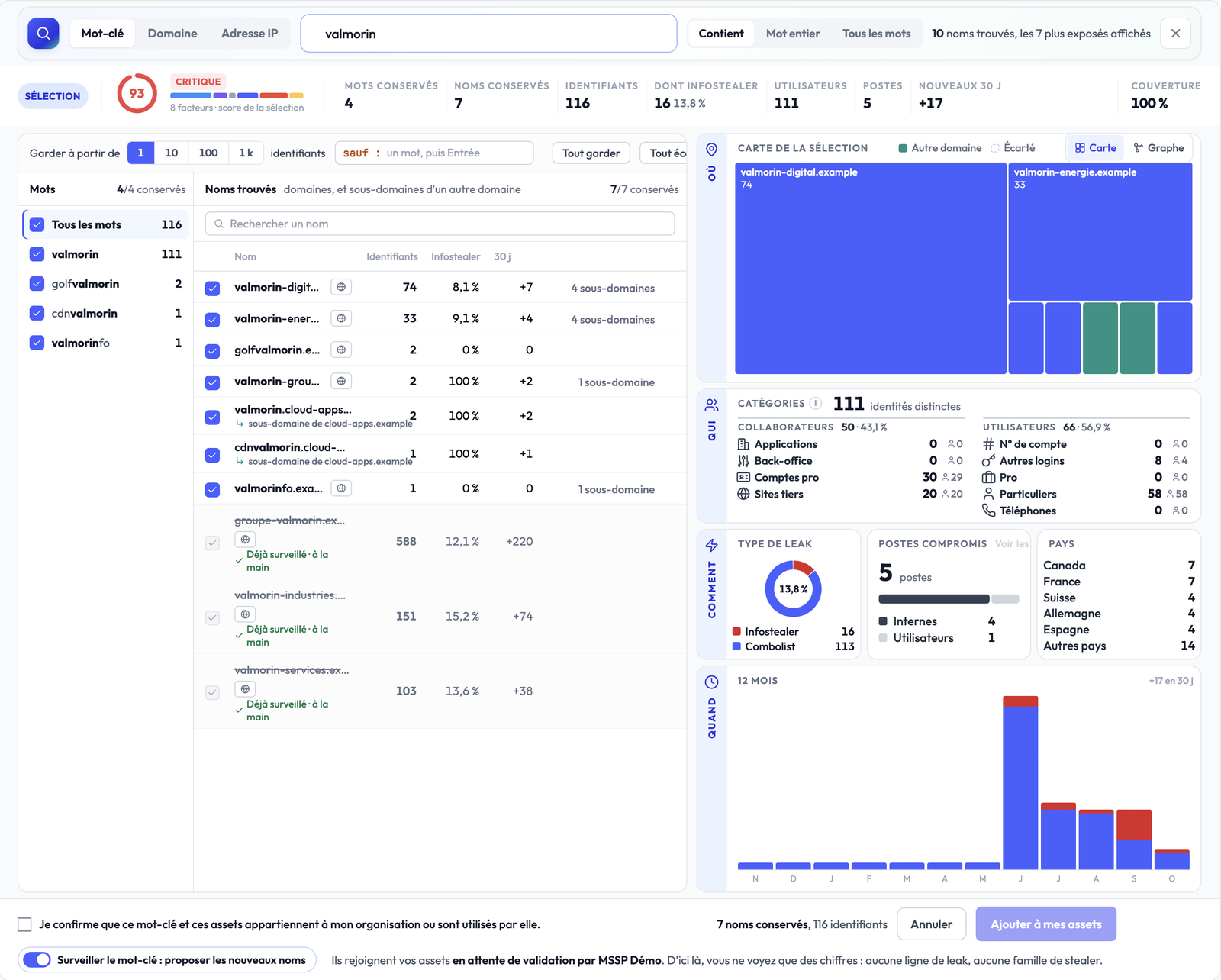
In the search bar at the top of the cockpit, pick the Keyword mode, type the term and run the search. The analysis lists the names found with their figures: keep the ones that belong to you, discard the others, tick the confirmation, then click Add to my assets. The keyword and its names show up in the Assets tab, waiting for validation by the Stealed team. The full flow is described in Assets.
3. Add team members
Self-service team invitations are not yet available. To add a member to your organization, write to [email protected] with the email address and the role you want them to have. We'll provision them within one business day.
Available roles:
- Owner: full administrative access, can manage billing
- Admin: manage monitors, channels, domains, keywords, API keys
- Member: sees the same data and handles incidents (assign, comment, acknowledge, resolve, reopen, snooze for up to 24 hours)
The self-service invitation flow is on our short-term roadmap.
4. Configure your first monitor
A monitor is a rule applied to your live leak feed. When new credentials match the rule, an event fires and notifications are dispatched to your chosen channels.
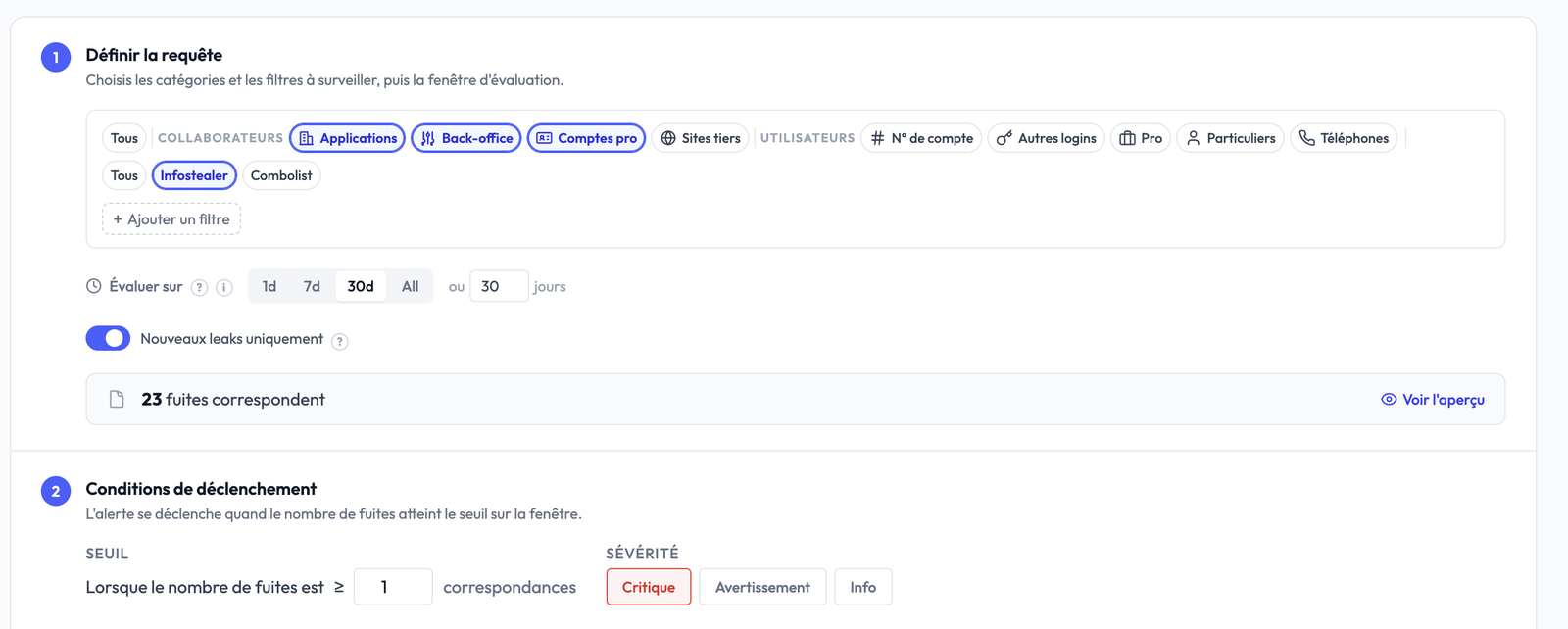
Open Monitor → New Monitor and configure:
- Query: the categories (Staff, Users), the leak type (infostealer / combolist), optional filters (domains, e-mail domains, stealers) and the evaluation window
- Trigger threshold: how many matching leaks before the alert fires (default: 1), and the severity
- Time-based renotification: reminder cadence if the event stays open (default: 24 h)
- Volume-based renotification: reminder when N new leaks match since the last notification (default: 10)
- Delivery channels: Slack, Microsoft Teams, webhook, email
The full lifecycle of a monitor is documented in Create a monitor.
5. Configure a notification channel
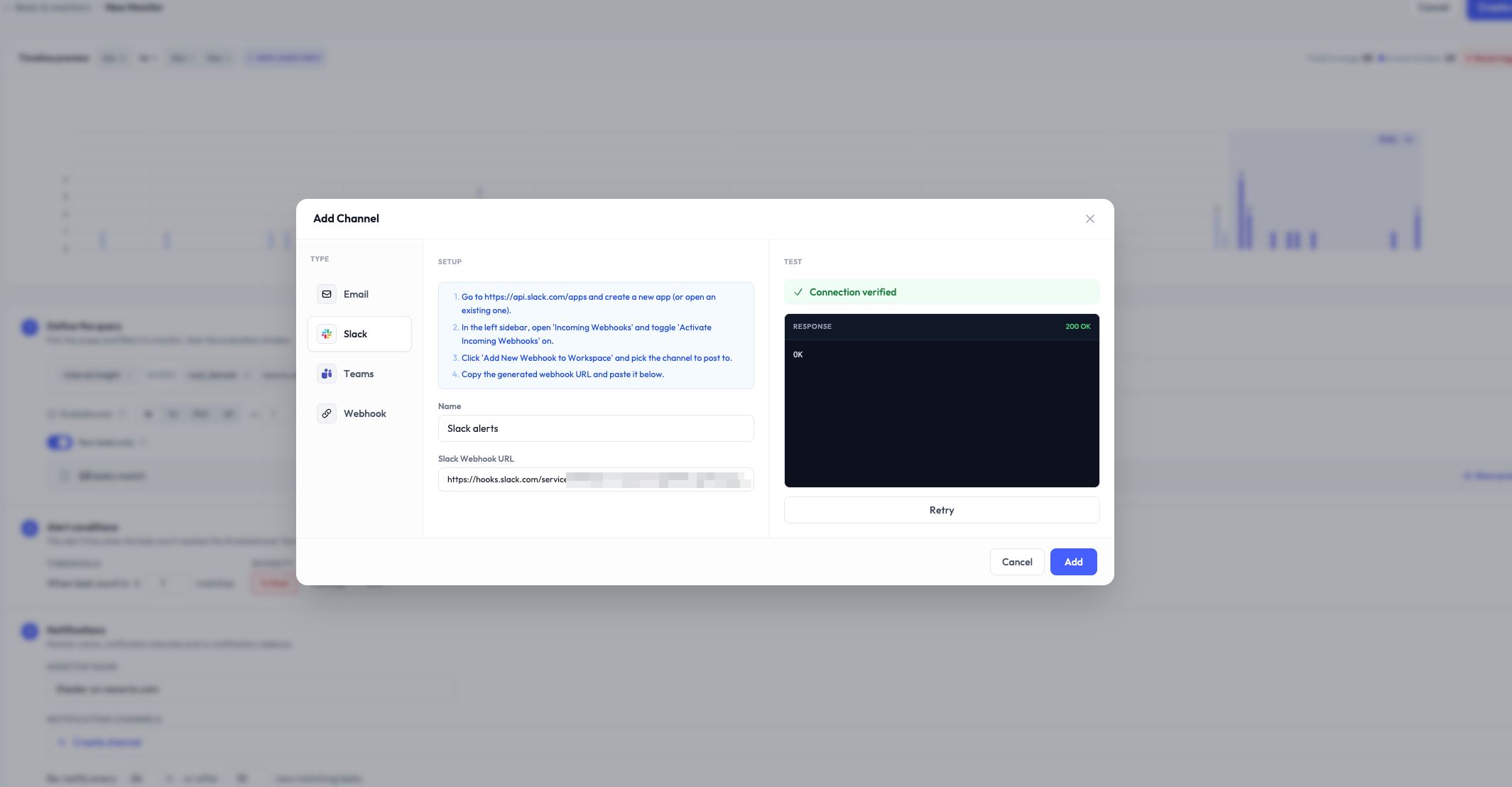
Channels are where Stealed sends the alerts. From Organization Settings → Notifications you can configure:
- Slack: OAuth-installed app, pick a channel
- Microsoft Teams: incoming webhook URL from Teams + workspace
- Custom webhook: any HTTPS endpoint that accepts JSON POST
- Email: comma-separated list of email addresses
Channels are organization-scoped. Once configured, attach them to any monitor. See Receive notifications.
6. Test the flow
The fastest way to confirm your setup works end-to-end:
- Create a monitor with a permissive query (e.g. all categories and all types) and threshold 1
- Attach a notification channel
- Wait for the next scheduler tick (max 10 minutes) or use the Run evaluation now button on the monitor page
If your domain has any pre-existing leaks in our dataset, you'll get an event within minutes. If not, leave the monitor running, real leaks will trigger naturally.
You can mute the test monitor or delete it after the validation: mute a monitor or just toggle it off.
What's next
- Cockpit: read your organisation's exposure
- Staff and users: the nine categories of every credential
- Create a monitor: full reference for monitor configuration
- Incident handling: assign, comment and produce an audit trail